
The CQG Orders Sortable & Totaled workbook pulls your orders from CQG straight into Excel and lets you sort, filter and total them in a few clicks. It is built for traders, clearing staff and risk desks who want a clean blotter view of working and filled orders without exporting or copying anything.
What you get on one screen:
- A live order list from CQG, up to 2,500 orders
- Up to three sort levels (for example Instrument, then Status, then most recent first)
- Filters by instrument, status, account, status group and side
- Buy, sell and net quantity totals for exactly the orders you are looking at
- Color-coded rows so working, filled, cancelled and rejected orders stand out
- Columns you can rearrange from a dropdown, without touching formulas
Before you start
The workbook reads orders through the CQG XL Toolkit, so CQG must be running before you open the file.
- CQG running and logged in to the accounts you want to see
- Microsoft Excel for Windows, with the CQG XL Toolkit add-in enabled
- When logging onto XL Toolkit in the first interface uncheck "Drop Concurrent Session"
- No macros to enable: the file is a standard .xlsx and runs on formulas only
The workbook has three tabs you will use. Main is your order view and the only tab most users need. Settings holds the status lists you can customize. Data is where CQG writes the raw orders; leave it alone.
Using the Main tab, step by step
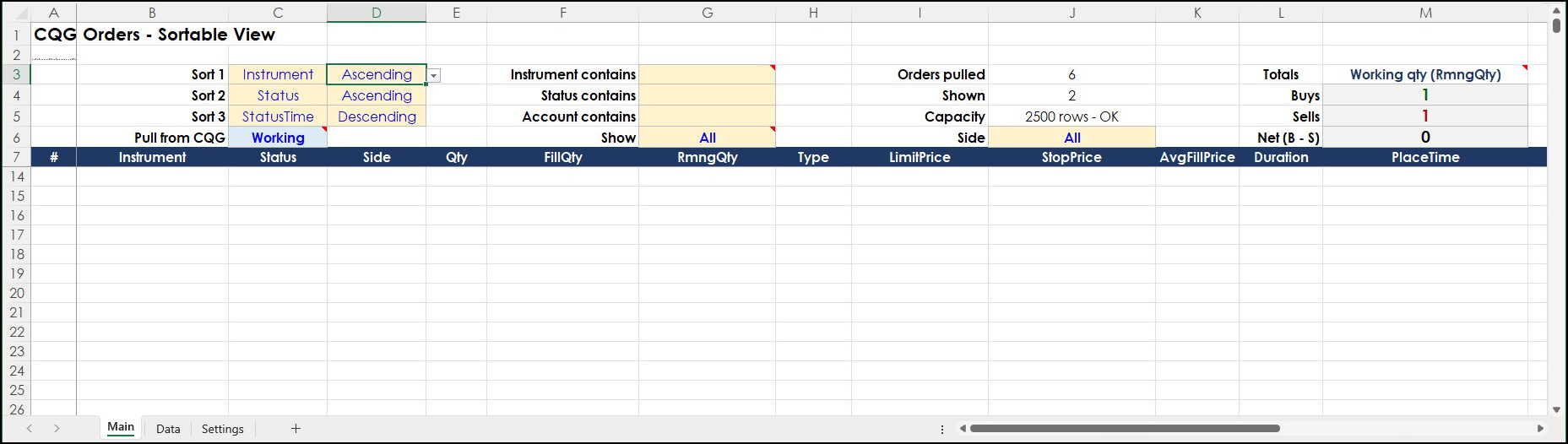
Everything you change lives in the colored control cells at the top of Main (rows 3 to 6). Each one has a dropdown or takes a few letters of text. Your order list starts at row 8, and the header row stays frozen as you scroll.
- Choose what to pull from CQG. In the light-blue Pull from CQG cell (C6), pick All, Working or Filled. This filter is sent to CQG itself, so only those orders are downloaded. Check Orders pulled (J3) to confirm how many arrived.
- Narrow the view. Use the yellow filter cells. Leave any of them blank to show everything.
- Instrument contains (G3): partial text works. Typing EP shows every E-mini S&P contract; the * and ? wildcards also work.
- Status contains (G4) and Account contains (G5): partial text, same as above.
- Show (G6): All, Working, Filled, Cancelled or Rejected.
- Side (J6): All, Buy or Sell.
- Shown (J4) tells you how many orders pass all filters.
- Sort the list. In Sort 1, Sort 2 and Sort 3 (C3 to C5) pick any order field, and set Ascending or Descending beside each (D3 to D5). Pick (none) to switch a level off. The default is Instrument, then Status, then StatusTime newest first.
- Status sorts in order-life sequence (in transit, working, filled, cancelled, rejected), not alphabetically.
- PlaceTime and StatusTime sort chronologically, down to the microsecond.
- A divider line marks each change in your Sort 1 value, so instrument groups are easy to spot.
- Read the totals. The Totals block (L3 to M6) shows Buys, Sells and Net (B - S) for the orders currently shown. The label above them tells you which quantity is being added:
- Working qty (RmngQty) when Show is Working, or Show is All and you pulled Working orders
- Filled qty (FillQty) in every other case
- Rearrange the columns. Each header in row 7 (B7 to V7) is a dropdown. Pick a different field and that column switches to it. Use this to put the fields you watch most at the left.
Control cells at a glance
| Cell | Control | What it Does |
|---|---|---|
| C6 | Pull from CQG | All, Working or Filled; sets which orders CQG downloads |
| C3-C5 | Sort 1, 2, 3 | Field for each sort level |
| D3-D5 | Direction | Ascending or Descending |
| G3 | Instrument contains | Partial symbol text or wildcards |
| G4 | Status contains | Partial status text |
| G5 | Account contains | Partial account text |
| G6 | Show | All, Working, Filled, Cancelled, Rejected |
| J6 | Side | All, Buy, Sell |
| J3 / J4 | Orders pulled / Shown | Count downloaded and count displayed |
| M3-M6 | Totals | Quantity mode, Buys, Sells, Net |
| B7-V7 | Column headers | Choose which field each column shows |
Row colors and customizing statuses
Each order row is shaded by its status group, so you can read the book at a glance.
| Group | Row Style | Example CQG Statuses |
|---|---|---|
| Working | Light yellow | InTransit, AckPlace, Working, Parked, InModify, PartialFill, InCancel |
| Filled | Light green | Fill, Filled |
| Cancelled | Gray text | AckCancel, Cancelled, Expired |
| Rejected | Light orange | Reject, Rejected |
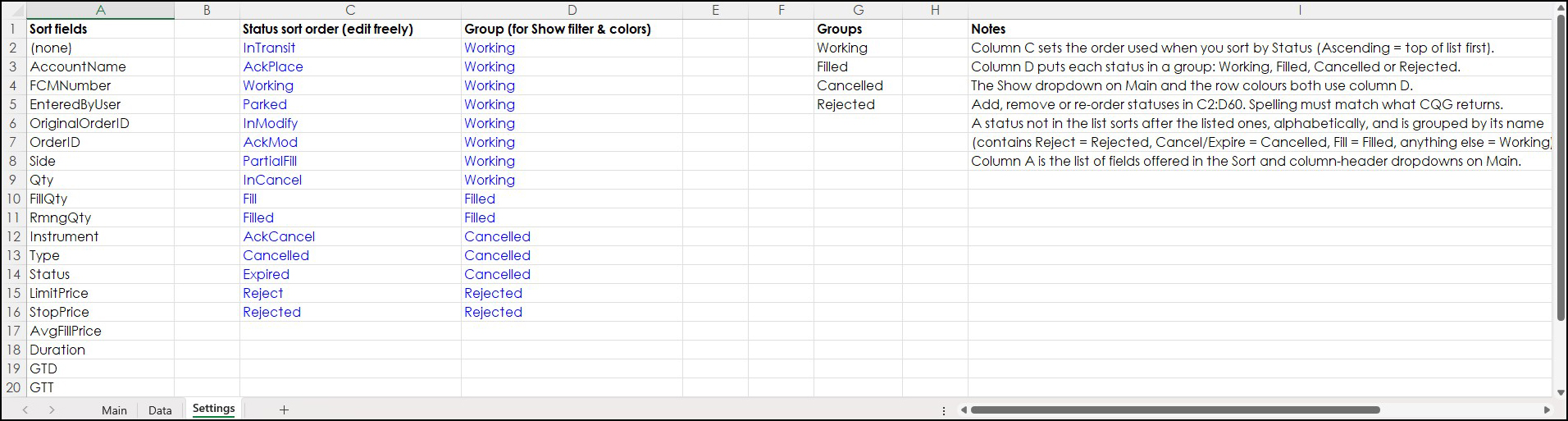
The Settings tab controls this. You can change it without breaking anything:
- Column C sets the order statuses appear in when you sort by Status. Move a status up or down to change where it lands.
- Column D assigns each status to a group: Working, Filled, Cancelled or Rejected. The Show filter and the row colors both follow this column.
- Add, remove or reorder statuses anywhere in C2:D60. Spelling must match what CQG returns.
- A status not on the list still works. It sorts after the listed ones and is grouped by its name: anything containing Reject is Rejected, Cancel or Expire is Cancelled, Fill is Filled, and everything else is Working.
Tips and troubleshooting
The one rule to remember: sort and filter only with the yellow cells on Main. The order rows are live formulas, so Excel's own Sort and Filter buttons will scramble them.
Do
- Leave a filter blank rather than typing All or *, unless the dropdown offers All
- Use partial text in the contains filters; it is faster than exact symbols
- Check the totals label (M3) before reading Buys, Sells and Net, so you know whether you are looking at working or filled quantity
Don't
- Use Excel's Sort, Filter or Table tools on the Main tab
- Type over the order rows on Main or edit columns A to V on the Data tab; CQG writes those
- Rename or delete the Data and Settings tabs
| Symptom | Likely Cause | Fix |
|---|---|---|
| Orders pulled shows 0 | CQG not running or not logged in, or the XL Toolkit add-in is off | Log in to CQG, enable the add-in, then reopen the workbook |
| An order you expect is missing | It was excluded by Pull from CQG or a filter | Set Pull to All and clear the yellow filter cells |
| Totals look too small or too large | Totals count shown orders only, in working or filled mode | Check the M3 label and your Show and Side settings |
| A status sorts or colors oddly | It is not listed, or is spelled differently, on Settings | Add it to Settings C:D with CQG's exact spelling |
| Capacity cell warns Over 2500 | More than 2,500 orders were pulled | Narrow Pull from CQG, or contact us to extend the workbook |
Questions or want a version tailored to your desk? Contact us and we will help you set it up.
Requires CQG Integrated Client or CQG QTrader, requires an enablement turned on by your FCM and Excel 2016 or higher installed on your computer, not in the Cloud.