
CQG Integrated Client and CQG QTrader support RealTimeData for sending data and other market information to Microsoft Excel®. This feature opens up many opportunities for creating custom displays and other ways to better manage your workflow. One consideration to keep in mind is that Excel has a throttle that manages how often it updates. You can set this throttle to whatever update rate you want. It is recommended to set the throttle to 100.
To set the throttle interval higher using the Excel object model:
- In Excel, go to the Visual Basic Editor by pressing ALT + F11.
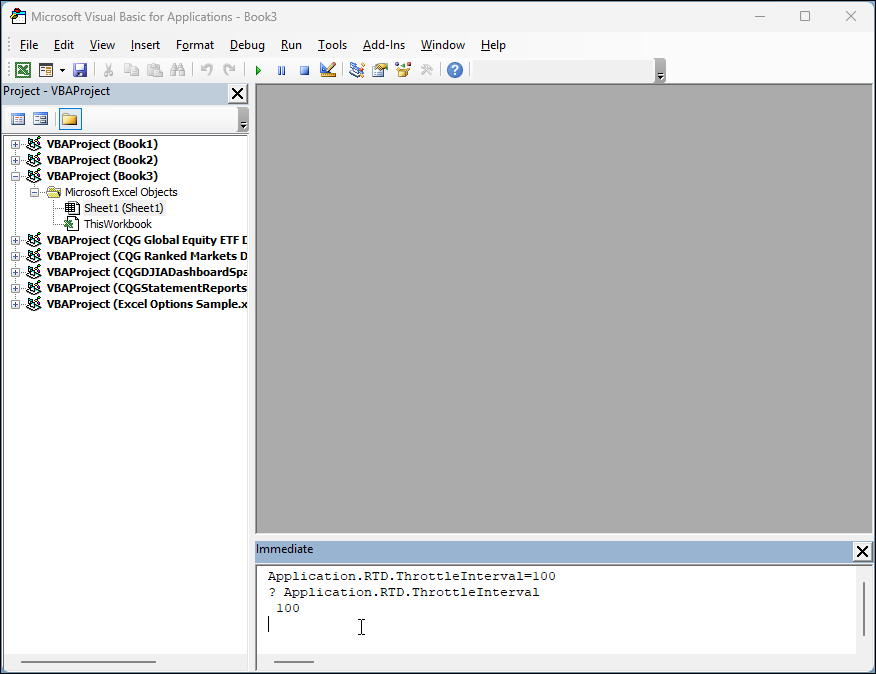
- On the Immediate Window at the bottom of the display, type this code:
Application.RTD.ThrottleInterval=100
(Note: If the Immediate Window is not open, press CTRL + G to display the window.) - Make sure your cursor is on the line that you just typed and then press ENTER.
- To verify that it is set correctly, type this line of code on the Immediate Window:
? Application.RTD.ThrottleInterval - Make sure your cursor is at the end of this line and then press ENTER. The window should display 0; then you know that your throttle interval is set correctly.
Source: Microsoft. Real-Time Data: Frequently Asked Questions. https://msdn.microsoft.com/en-us/library/aa140060(office.10).aspx
To learn more about configuring the RTD throttle interval in Excel, visit the MSDN Real-Time Data: Frequently Asked Questions web page.