
This post details using Excel's UNICHAR function for a data visualization technique applied to a current session's percentage net change for a collection of markets. First, an introduction to both Excel's functions: UNICODE and UNICHAR.
UNICODE returns the number (code point) corresponding to the first character of the text. For Example:
=UNICODE("X") returns 88And UNICHAR returns the Unicode character that is referenced by the given numeric value.
=UNICHAR(88) returns X
Another example using ☺:
=UNICODE("☺") returns 9786And:
=UNICHAR(9786) returns ☺
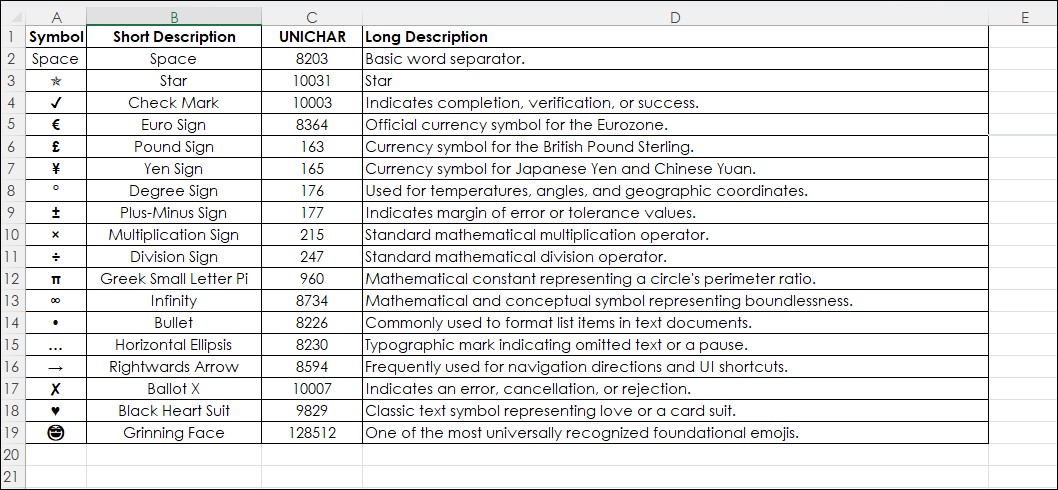
The sample spreadsheet has a table of popular UNICODE numbers and descriptions of the returned characters.
What follows is an explanation of the posted sample spreadsheet and how the Excel UNICHAR function was used to indicate the session's percentage net change performance broken down into quartiles. The stocks are the 30 companies in the Dow Jones Industrial Average.
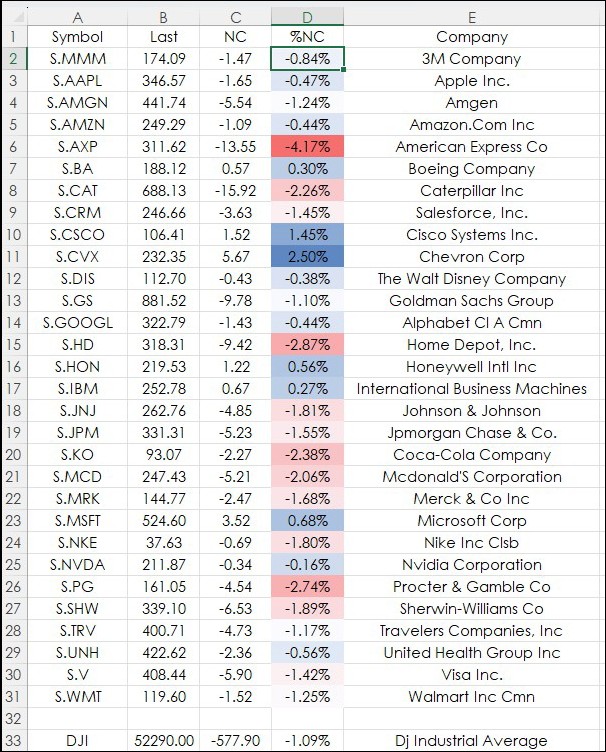
The image below displays the symbols and using RTD formulas the returned values for the Last Trade, Net Change, Percentage Net Change and the name of the company. The Percentage Net Change column is heat mapped.
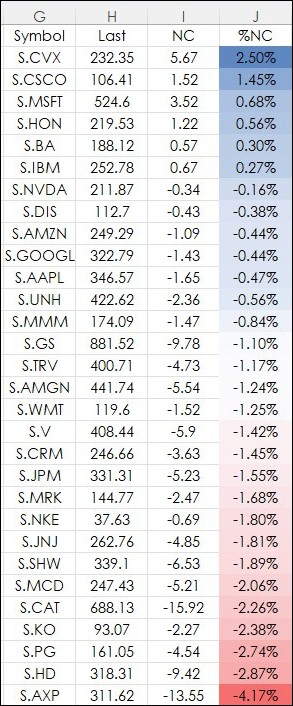
A more valuable view is to sort the symbols based on the Percentage Net Change column. The Excel function is in cel G2:
=SORTBY(A2:D31,D2:D31,-1)
The Percent Net Change column is heat mapped.
What is helpful is to add an additional column that breaks down the company performance into quartiles. First, the maximum gain is in cell K1:
=MAX(J2:J31)
The minimum gain is in cell L1:
=MIN(J2:J31)
Cell M1 is the maximum gain plus the absolute value of the minimum gain divided by four:
=(K1+ABS(L1))/4
Next the four quartiles are calculated.
Quartile 1 (Cell M2):
=$K$1-$M$1
Quartile 2 (Cell M3):
=$K$1-(2*$M$1)
Quartile 3 (Cell M4):
=$K$1-(3*$M$1)
Quartile 4 (Cell M5):
=$K$1-(4*$M$1)
Next, Excel checks if the Percentage Net Change in Column J is greater than the Quartile then the UNICHAR(10031) function is used to return a star:
=IFS(J2>$M$2,UNICHAR(10031)…
The IFS function checks whether one or more conditions are met and returns a value that corresponds to the first TRUE condition. IFS takes the place of multiple nested IF statements, and is much easier to read with multiple conditions
The full Excel function to return a star, and up to four stars:
=IFS(J2>$M$2,UNICHAR(10031),J2>$M$3,UNICHAR(10031)&UNICHAR(10031),J2>$M$4,UNICHAR(10031)&UNICHAR(10031)&UNICHAR(10031),J2>=$M$5,UNICHAR(10031)&UNICHAR(10031)&UNICHAR(10031)&UNICHAR(10031))
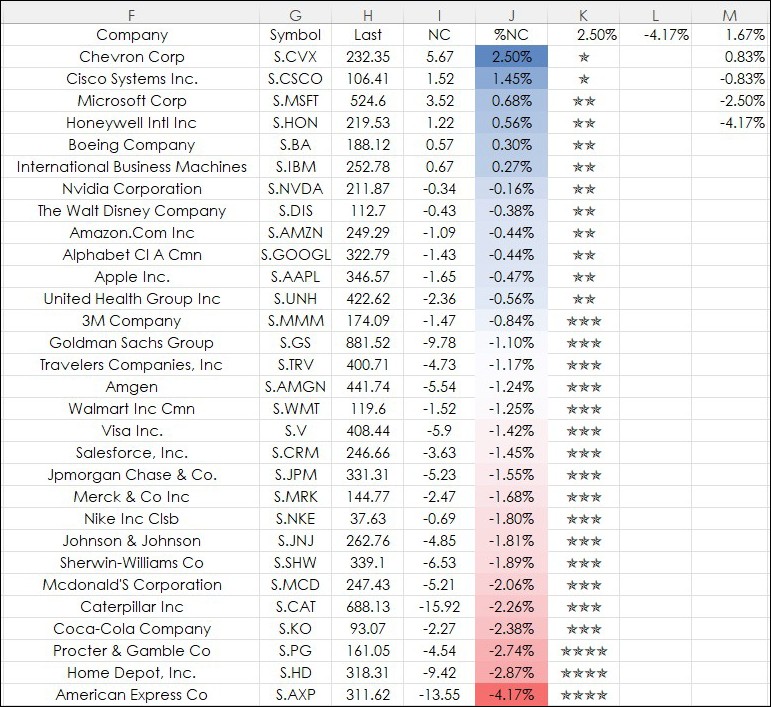
Above, Column K indicates that two companies were in the Quartile 1, 10 companies were in Quartile 2, 15 companies were in Quartile 3, and 3 companies were in Quartile 4.
Here is the table with a list of popular UNICHAR codes and is a tab in the downloadable Excel sample:
This post introduced the Excel UNICODE and UNICHAR functions and detailed using the UNICHAR function as a data visualization technique.
Requires CQG Integrated Client or CQG QTrader, data enablements for the NYSE and Nasdaq stocks, and Excel 2016 or more recent locally installed, not in the Cloud.