
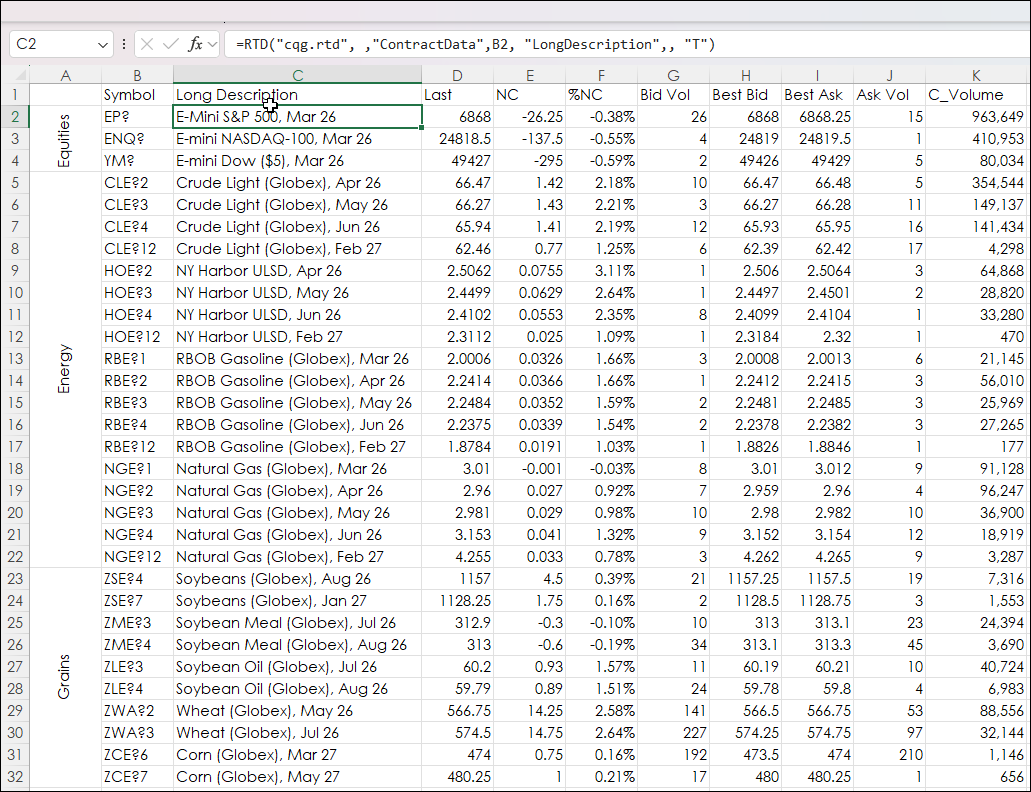
This post details using Excel's REDUCE and LAMBDA function to extract particular data from an Excel dashboard tracking many different markets. For example, the image below displays market data for Equities, Energy and Grains.
What might be helpful is a table that lists contracts by the expiration date, such as:
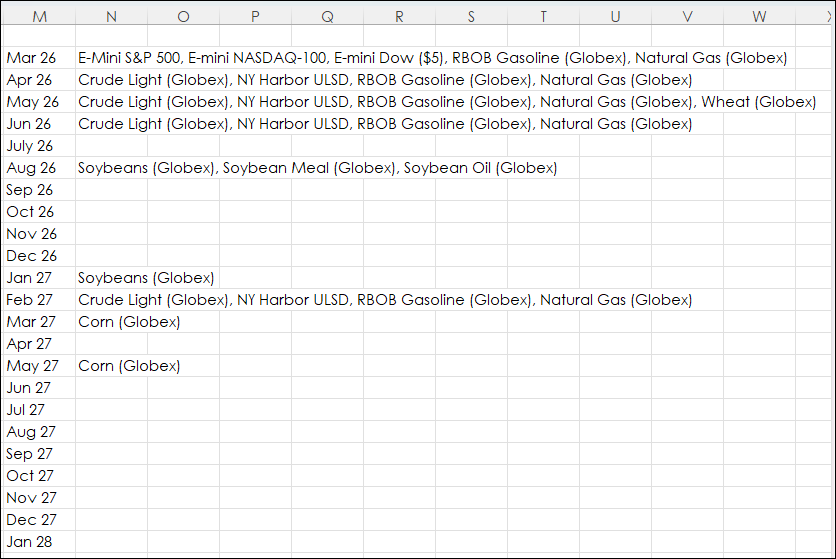
The table displayed above is using the REDUCE and LAMBDA Excel functions to find the expiration date from the Long Description in column "C" and then looking to column "M" and displaying those contracts with a matching expiration date.
The REDUCE Function has a starting point parameter, in this case as this is text, the starting point is blank ("") and the array C2:C32 is declared. Then the LAMBDA function is asking for the text after the first comma, which is the expiration date. Then, the function returns the text before expiration date (the contract description) that matches the dates listed in column M
=REDUCE("",C2:C32,LAMBDA(a,v,IF(TEXTAFTER(v,", ")=M2:M24,a&", "&TEXTBEFORE(v,","),a)))One issue is the function returns a comma after the description and that can be removed by using the SUBSTITUE function. The first comma is now a blank space.
=SUBSTITUTE(REDUCE("",C2:C32,LAMBDA(a,v,IF(TEXTAFTER(v,", ")=M2:M24,a&", "&TEXTBEFORE(v,","),a))),", ","",1)The above RTD formula is entered into cell N2 and "spills" down as an array. If you add or delete symbols in the table of futures contracts then C2:C32 in the formula has to be modified. If you add or delete months in column M then M2:M24 has to be modified.
Column M has the expiration months and has to be manually updated. The cell is a string that has to match the month and year in the Long Description in column C. For example, cell M2 is ="Mar 26".
The downloadable sample spreadsheet can be modified to use different symbols.
More details regarding the LAMBDA function are from this post: Excel 365 Using the LAMBDA Function.
Requirements: CQG Integrated Client or QTrader, and Excel 365 (locally installed, not in the Cloud) or more recent.