
The Excel DGET function extracts a single value from a column of a list or database that matches conditions that you specify.
The syntax is DGET(database, field, criteria).
The DGET function syntax has the following arguments:
- Database: The range of cells that makes up the list or database.
- Field: Indicates which column is used in the function.
- Criteria: The range of cells that contains the conditions that you specify.
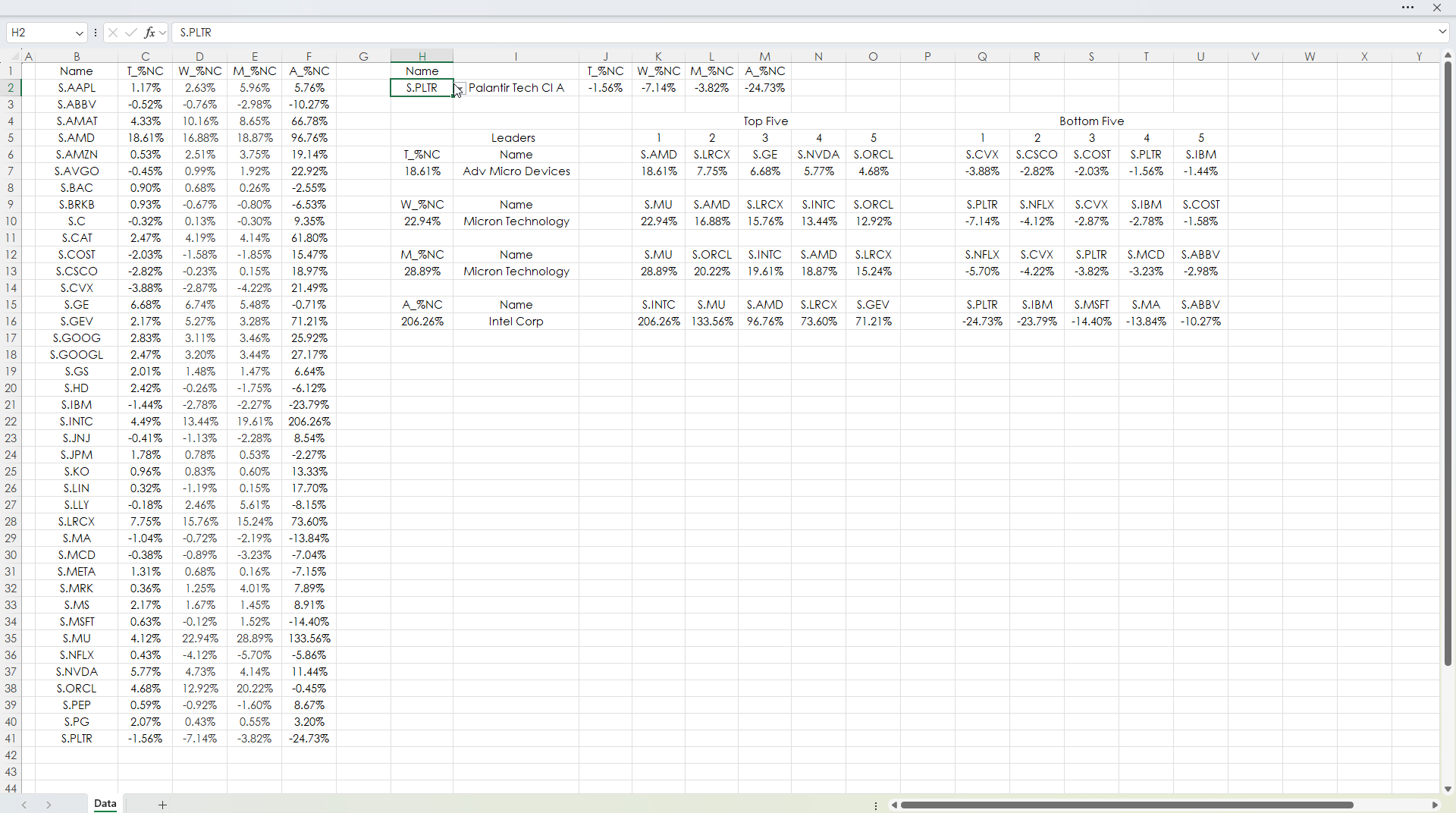
The downloadable sample spreadsheet at the bottom of the post has 40 symbols of large cap stocks from the S&P 500 in column B.
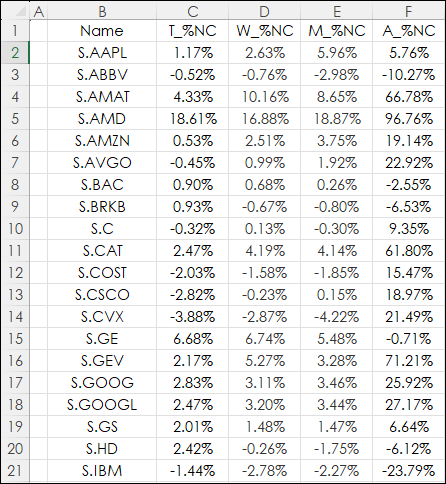
Column C is Today's Percentage Net Change. The column uses this RTD formula:
=IFERROR(RTD("cqg.rtd", ,"ContractData",B2, "PerCentNetLastTrade",, "T")/100,"")Column D is the Weekly Percentage Net Change. The column uses this RTD formula:
=IFERROR(RTD("cqg.rtd",,"StudyData",B2, "PCB","BaseType=Index,Index=1", "Close", "W","0","all",,,,"T")/100,"")Column E is the Monthly Percentage Net Change. The column uses this RTD formula:
=IFERROR(RTD("cqg.rtd",,"StudyData",B2, "PCB","BaseType=Index,Index=1", "Close", "M","0","all",,,,"T")/100,"")Column E is the Annual Percentage Net Change. The column uses this RTD formula:
=IFERROR(RTD("cqg.rtd",,"StudyData",B2, "PCB","BaseType=Index,Index=1", "Close", "A","0","all",,,,"T")/100,"")The IFERROR function is used because if there is no current value an error is returned because the RTD formula for percent net change is divided by 100.
For more information regarding pulling in Net Change using RTD formula this post offers more details: Basic Excel RTD Percent Net Change Formulas.
The entire Database for the DGET function in the sample spreadsheet is cells B1:F41.
Cell J1 has this DGET function to pull today's percent net change for the symbol in cell H2:
=DGET($B$1:C41,J1,$H$1:$H$2)
The DGET function above is using cells $B$1:C41for the database. J1, the Field, is using "T_%NC" which is the name of column B in the data-base. Finally, $H$1:$H$2 is the Criteria, which is Name and in this case, symbol S.PLTR.
Cell H2 is a drop-down list
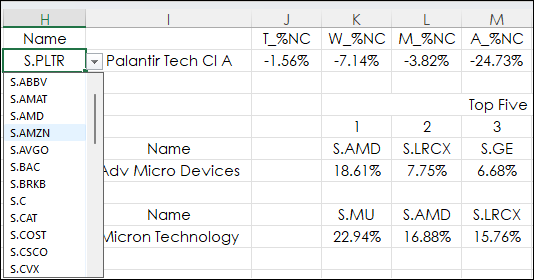
The drop-down list is all of the stock symbols in column B.
For details on how to create a drop-down list is here.
The formula for the Weekly_Percent Net Change in cell K2 is:
=DGET($B$1:D41,K1,$H$1:$H$2)
The formula for the Monthly_Percent Net Change in cell L2 is:
=DGET($B$1:E41,L1,$H$1:$H$2)
The formula for the Annual_Percent Net Change in cell M2 is:
=DGET($B$1:F41,M1,$H$1:$H$2)
There is a block for the current leaders for each time frame: Today, Weekly, Monthly and Annual.
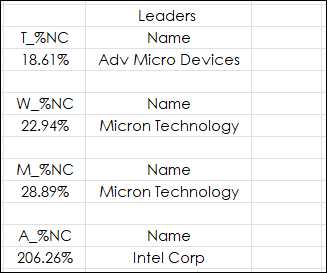
The cell right below T_%NC is using the Max function for column C:
=MAX(C2:C41)
The DGET function is used to find the symbol associated with the maximum percent net change for the column C:
DGET(B1:F41,I6,H6:H7)
The DGET function is used within the RTD formula as the symbol parameter for the Long Description (company name):
=IFERROR(PROPER(RTD("cqg.rtd", ,"ContractData",DGET(B1:F41,I6,H6:H7), "LongDescription",, "T")),"")These two formulas are repeated for the W_%NC, M_%NC, and A_%NC.
The final block of data is the top 5 and the bottom five performers in the four columns.
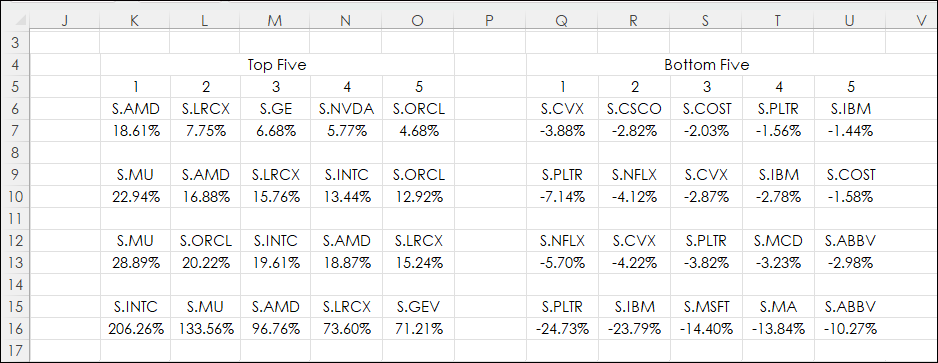
The LARGE function is used in the left hand block. It returns the percent net change for the column using the counter in row 5, i.e., 1 is first, 2 is second, 3 is third, etc. Cell K7:
=IFERROR(LARGE($C$2:$C$41,K5),"")
Then the XLOOKUP function is used to return the symbol associated with each Percent Net Change:
=IFERROR(XLOOKUP(K7,$C$1:$C$41,$B$1:$B$41),"")
For the lowest percent net change the SMALL function is used in the right hand block:
=IFERROR(SMALL($C$2:$C$41,Q5),"")
Then the XLOOKUP function is used to return the symbol associated with each Percent Net Change:
=IFERROR(XLOOKUP(Q7,$C$1:$C$41,$B$1:$B$41),"")
Here is the full sample Excel spreadsheet.
The DGET function is useful for pulling details from a data-base due to its ability to look from right to left for matching criteria. This post included examples of using Excel MAX, LARGE and SMALL, and XLOOKUP functions.
Requirements: CQG Integrated Client or QTrader, exchange enablements for the NYSE and NASDAQ, and Excel 365 (locally installed, not in the Cloud) or more recent.
This post was assisted by AI and reviewed by Thom Hartle.