
This options dashboard uses a combination of functionality from the CQG RTD Toolkit and Excel functions including SORT, FILTER, and RIGHT to track the options market. The markets monitored are the CME-Emini Options.
The details provided can be used to change the markets monitored from the CME-Emini Options to another options market.
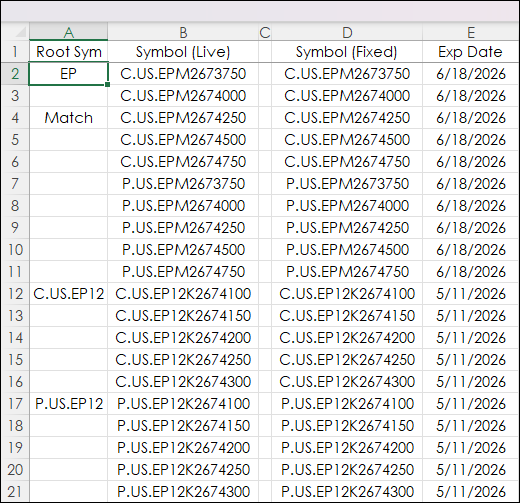
The image below is columns A through E of the downloadable sample at the bottom of the post. Column A, the Root Symbol is copied and pasted from CQG IC or QTrader's Symbol Finder.
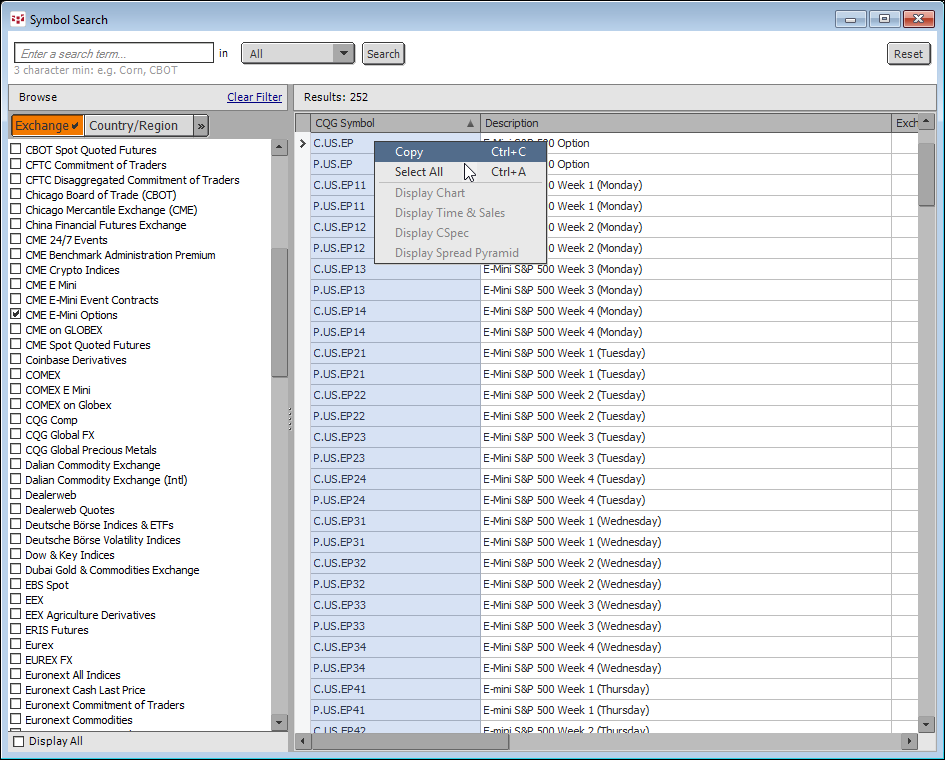
Select the symbols, copy and paste to column A of the Excel sheet.
The root symbols in column A were manually separated by 5 rows. The reason for the separation is the CQG RTD Toolkit was used to pull in options symbols based on the root symbol in column A. The symbol for the at-the-money (ATM) option and options two strikes above the ATM and options two strikes below the ATM.
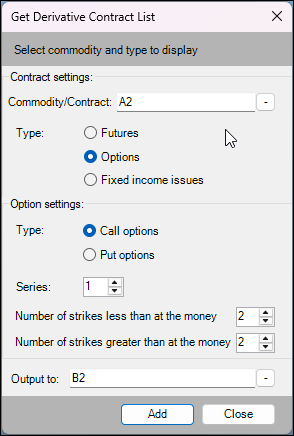
The RTD formula inserted into cell B2:
={CQGOptions(A2, "1", "-2,2", "Call")}This RTD formula returns an array and cannot be edited.
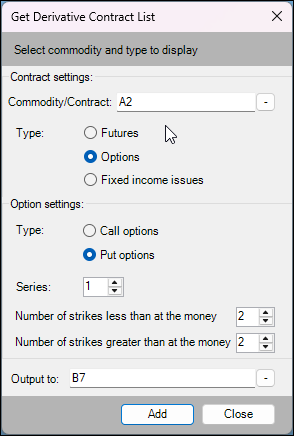
For the put options using the same root symbol (cell A2) in cell B7 is returned as an array.
={CQGOptions(A2, "1", "-2,2", "Put")}Column B RTD formulas are entered in blocks to use the correct symbol in column A.
For example, the images above used cell A2 from column A for the call options and again cell A2 for the Put options. But, after that the RTD formulas for the call options will use C.US.EP12 in cell A12, and the put options, such as P.US.EP12 in cell A17. This is repeated as displayed in the first image at the top of the post.
An important note: If the At The Money (ATM) strike changes then the symbols in column A will change. This could be an issue as the ATM strike and the above and below the ATM strikes will all update to the new ATM strike.
The issue can be avoided by copying and pasting column A to column B as values.
At the top of column A in cell A4 is this formula:
=IF(B4=D4,"Match","Mismatch")
If the live ATM in cell B4 does not match the saved ATM symbol in cell D4 then cell A4 will display "Mismatch".
Column E displays the Expiration Date for the symbols in Column D:
=@CQGContractData(D2, "ExpirationDate", "-1", "T")
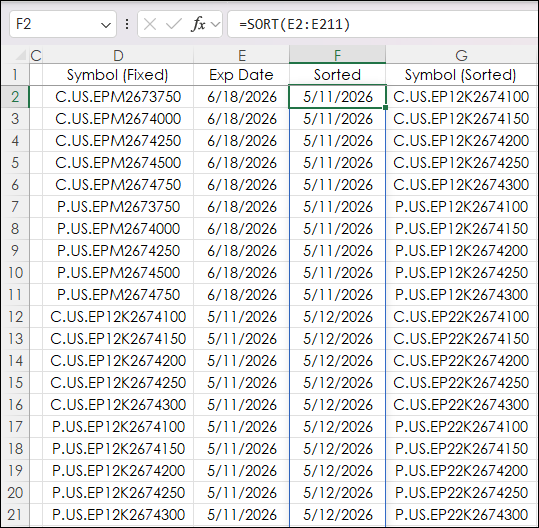
Column F sorts the Expiration Date column from nearest expiration date to the farthest expiration date:
=SORT(E2:E211)
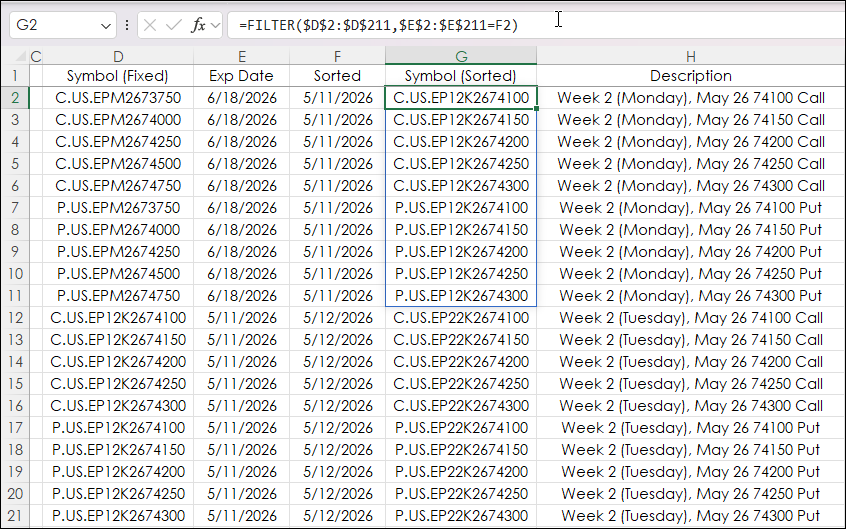
Column G uses the FILTER function to return the symbols in Column D associated with the sorted Expiration Date in column F.
Cell G2:
=FILTER($D$2:$D$211,$E$2:$E$211=F2)
The FILTER function is inserted in blocks that match the Sorted Expiration Date blocks.
Cell G12:
=FILTER($D$2:$D$211,$E$2:$E$211=F12)
And Cell G22:
=FILTER($D$2:$D$211,$E$2:$E$211=F22)
This is repeated for the entire column.
Column H returns the Long Descriotion of the option symbols from column G. The RTD formula for the Long Description is"
=@CQGContractData(H2, "LongDescription", "-1", "T")
And returns:
"E-Mini S&P 500 Week 2 (Monday), May 26 74100 Call"
This description wastes valuable screen real estate. Column H uses this Excel function to remove "E-Mini S&P 500" from the description:
=TRIM(RIGHT(CQGContractData(G2, "LongDescription", "-1", "T"),(LEN(CQGContractData(G2, "LongDescription", "-1", "T"))-14)))
And returns:
"Week 2 (Monday), May 26 74100 Call"
The remainder of the columns use RTD calls for market data. For example, Column I returns the Last Trade:
=RTD("cqg.rtd", ,"ContractData",G2, "LastTrade",, "T")Column J uses this RTD formula to return Net Last Trade:
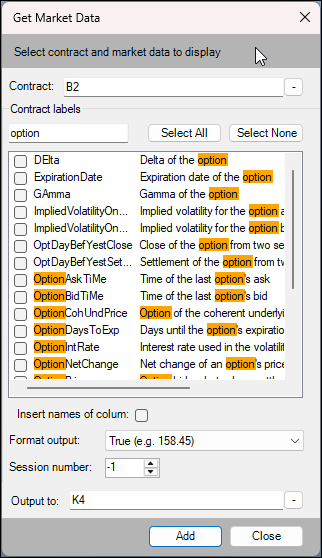
=RTD("cqg.rtd", ,"ContractData",G2, "NetLastTrade",, "T")The CQG RTD Toolkit has RTD formulas for other market data. For RTD formulas for Options Data, such as the Greeks, enter "options" in the Options Contract Labels field.
This image is the full Excel dashboard.
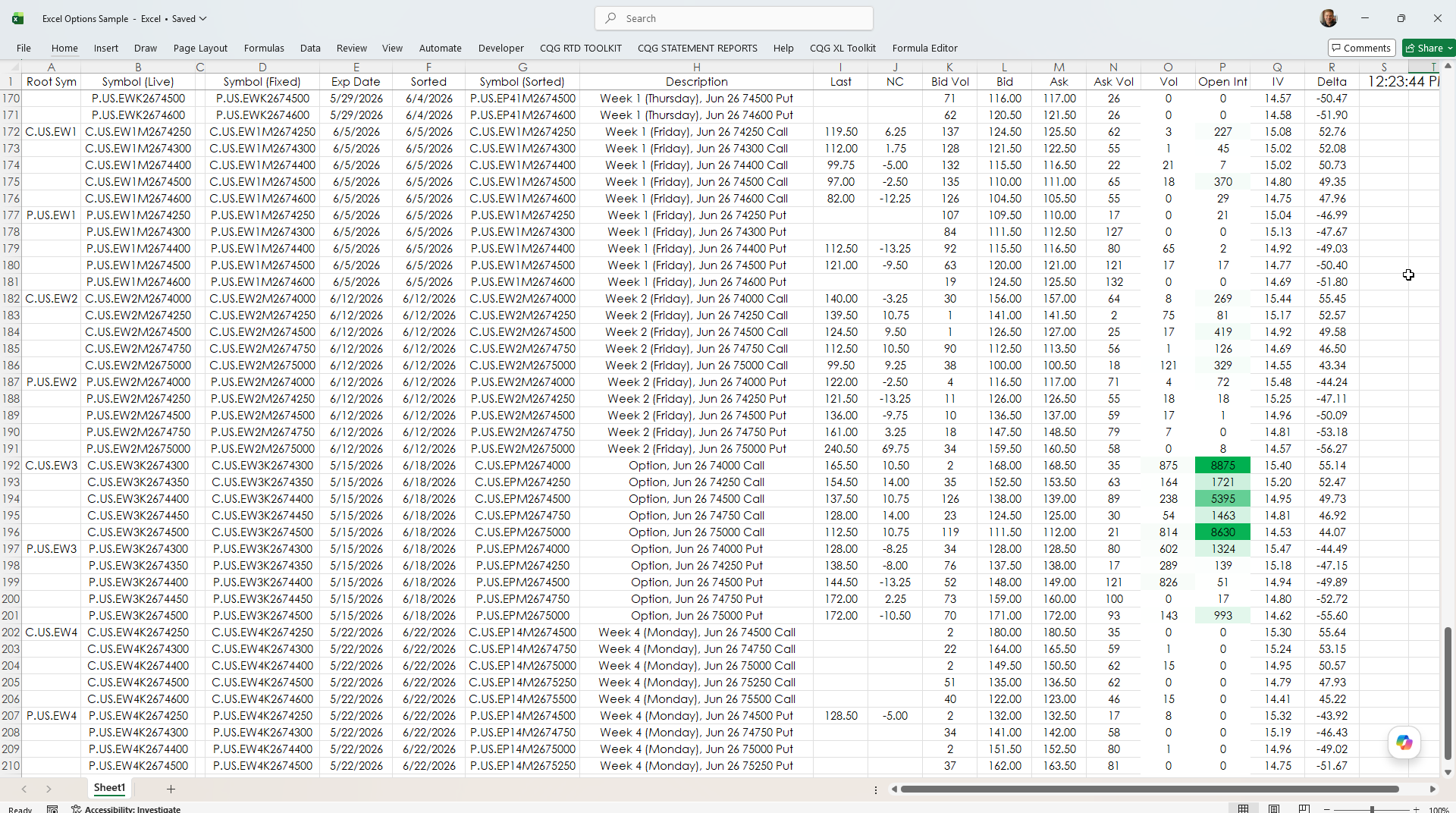
This post detailed the Excel Options Dashboard available at the bottom of the post. The post provided details for altering the options markets covered.
Requires CQG Integrated Client or CQG QTrader, data enablement for the CME-Emini Options Feed and Excel 365 or more recent locally installed, not in the Cloud.