
Excel's REGEXEXTRACT function enables enhanced text extraction based on patterns using regular expressions (regex) rather than fixed positions. This function enables you to pull specific data from text strings.
The REGEXREPLACE function replaces parts of a text string using regular expressions (regex). It searches for a specific pattern and replaces the matches with new text.
A regular expression is a standardized sequence of characters forming a search pattern, used to match, locate, and manipulate text within strings. Working by interpreting special meta-characters (like *, +, ?) and literal text via an engine, it enables advanced validation and data extraction, such as parsing email addresses or formatting text.
Consequently, these two functions eliminate the need to use MID, LEFT, RIGHT, FIND, SEARCH, LEN, and SUBSTITUTE functions for managing or modifying text strings.
For users using Excel RTD functions to pull in data the two functions are helpful for managing screen real estate. Specifically, the two functions can be used to modify the RTD call for the Long Description of a symbol to remove unnecessary information or to pull specific information.
For example, the RTD call for the Long Description for Soybeans returns:
Soybeans (Globex), May 26
The RTD call for the Long Description for Soybean Meal returns:
Soybean Meal (Globex), May 26
The RTD call for the Long Description for the 10 year T-note returns:
10yr US Treasury Notes (Globex), Jun 26
The RTD call for the Long Description for the one month Corn Calendar spread returns:
Corn Calendar Spread 1, (1*ZCEK26-1*ZCEN26)
The RTD call for the Long Description for a call option returns:
E-mini NASDAQ-100 Index Options, Jun 26 24250 Call
The RTD calls for the Long Description of various symbols detailed above show how much space can be required if used in an Excel dashboard.
Some of the returned data may not be necessary. Does (Globex) need to be seen? Perhaps the expiration date could be used in its own cell. Prior to Excel 365 the SUBSTITUTE function would have been used to replace (Globex) and the date with "" (an empty space). However, the date will change and SUBSTITUTE requires fixed text.
Excel 365 has REGEXREPLACE which is used to replace (Globex) and the date with "", which is an empty space.
The REGEXREPLACE function is:
REGEXREPLACE (text, pattern, replacement, [occurrence], [case sensitivity])
| Argument | Description |
|---|---|
| Text (required) | The text or the reference to a cell containing the text you want to replace with strings within. |
| Pattern (required) | The regular expression ("regex") that describes the pattern of text you want to replace. |
| Replacement (required) | The text you want to replace instances of pattern. |
| Occurrence | Specifies which instance of the pattern you want to replace. By default, occurrence is 0, which replaces all instances. A negative number replaces that instance, searching from the end. |
| Case Sensitivity | Determines whether the match is case-sensitive. By default, the match is case-sensitive. Enter one of the following: 0: Case sensitive, 1: Case insensitive |
The "Pattern" requires using a "Regular Expression" to find the text in the original string. We can use AI to determine the Pattern needed for the regular expression. Simply, ask Google AI Mode for the complete function.
In this case, both (Globex) and the date are being replaced with an empty space. The date will be brought back later.
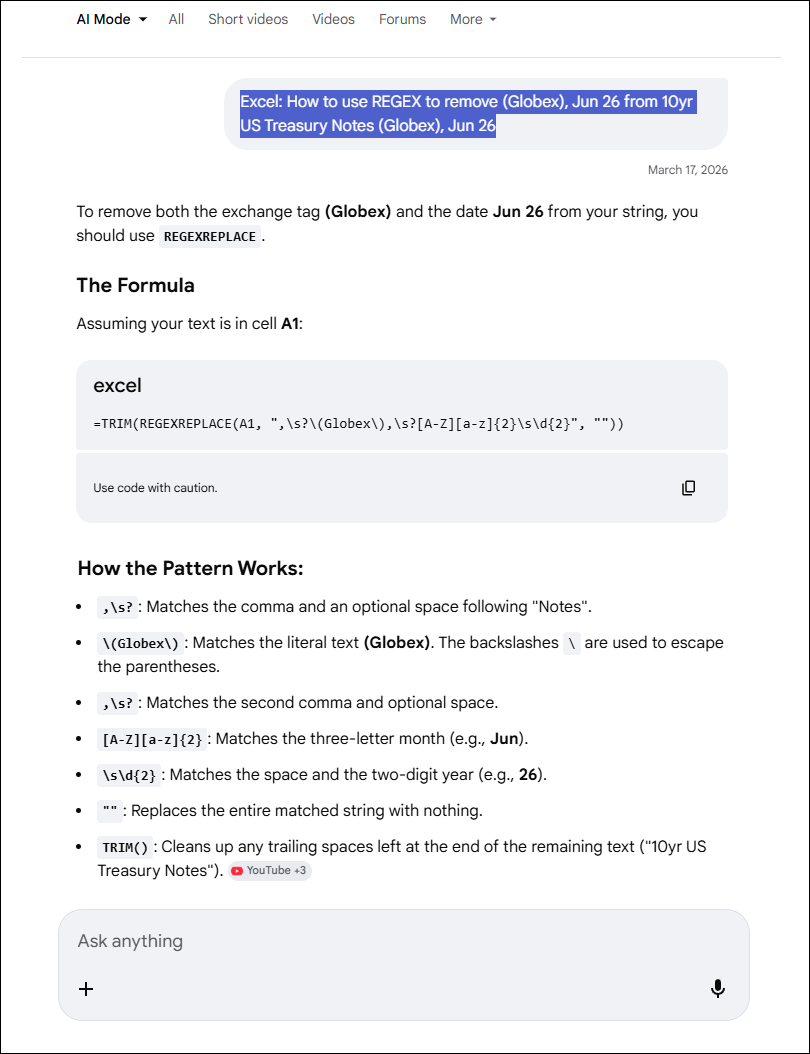
The REGEXREPLACE function is replacing (Globex) and Jun 26 with empty spaces and the TRIM function is removing any extra spaces.
The detailed table of how the pattern works is educational in that the function works with other expiration dates, not just a fixed date.
However, the first bullet says:
,\s? : Matches the comma and an optional space following "Notes".
But there isn't a comma following "Notes". So, this function will not work. The ",\s? " must be removed.
Below, the RTD formula for the Long Description is used in the REGEXREPLACE function instead of the cell reference A1:
=TRIM(REGEXREPLACE(RTD("cqg.rtd", ,"ContractData",B9, "LongDescription",, "T"), "\(Globex\),\s?[A-Z][a-z]{2}\s\d{2}", ""))The date was removed from the original string. Now, the date will be extracted from the Long Description and used in its own cell.
The REGEXEXTRACT function is:
REGEXEXTRACT(text, pattern, [return mode], [case sensitivity])
| Argument | Description |
|---|---|
| Text (required) | The text or the reference to a cell containing the text you want to extract strings from. |
| Pattern (required) | The regular expression ("regex") that describes the pattern of text you want to extract. |
| Return mode | A number that specifies what strings you want to extract. By default, return mode is 0. The possible values are:
Note: Capturing groups are parts of a regex pattern surrounded by parentheses "(...)". They allow you to return separate parts of a single match individually. |
| Case Sensitivity | Determines whether the match is case-sensitive. By default, the match is case-sensitive. Enter one of the following: 0: Case sensitive, 1: Case insensitive |
Ask AI to provide the regular expression to return the date from the RTD Long description:
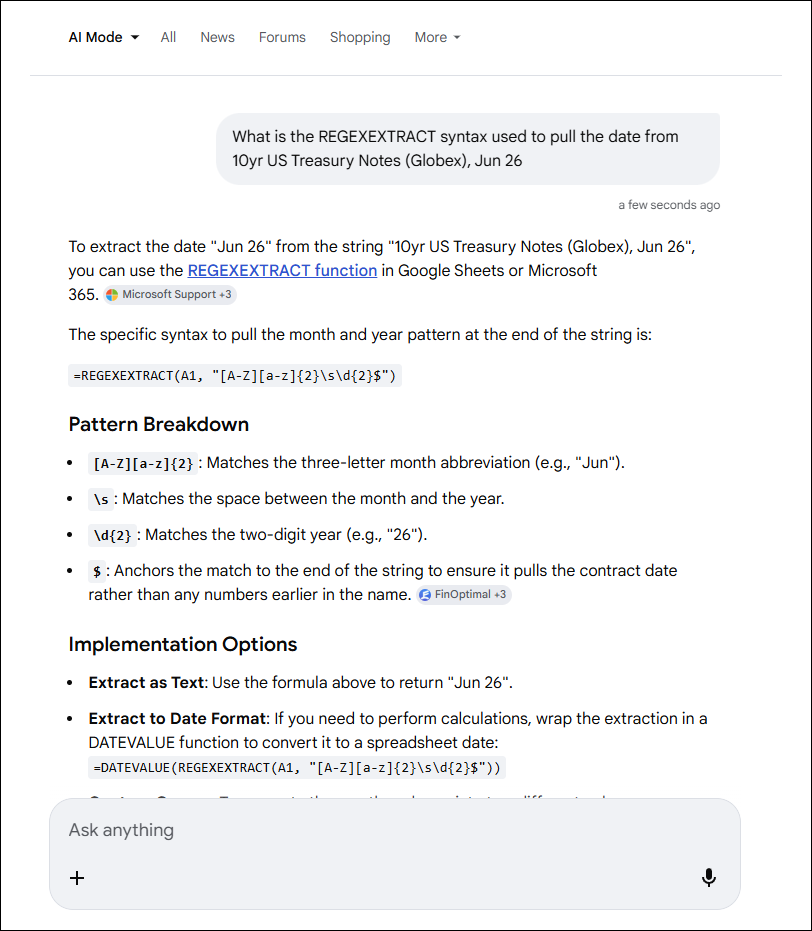
Here is the REGEXEXTRACT function for the date (again the RTD call for the Long Description is used instead of cell reference A1):
=REGEXEXTRACT(RTD("cqg.rtd", ,"ContractData",B9, "LongDescription",, "T"), "[A-Z][a-z]{2}\s\d{2}")The image below compares the use of the RTD call for the Long Description (top section) and the use of the REGEXREPLACE and REGEXEXTRACT (the bottom section). A column was gained.
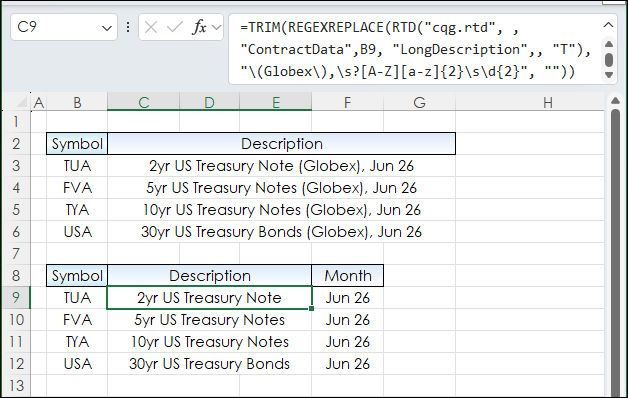
Gaining one column may not seem like much but for other long descriptions it can be greater.
Recalling that for an option:
=RTD("cqg.rtd", ,"ContractData","C.ENQ", "LongDescription",, "T")Returns:
E-mini NASDAQ-100 Index Options, Jun 26 24250 Call
Where using REGEXREPLACE:
=TRIM(REGEXREPLACE(RTD("cqg.rtd", ,"ContractData",Q33, "LongDescription",, "T"), "\b(Index Options)\b,\s?[A-Z][a-z]{2}\s\d{2}", ""))Returns this shorter version:
E-mini NASDAQ-100 24250 Call
And, for a Calendar Spread:
=RTD("cqg.rtd", ,"ContractData","ZCES1?1, "LongDescription",, "T")Returns:
Corn Calendar Spread 1, (1*ZCEK26-1*ZCEN26)
Where using REGEXREPLACE:
=TRIM(REGEXEXTRACT(RTD("cqg.rtd", ,"ContractData","ZCES1?1", "LongDescription",, "T"), "\(([^()]+)\)$"))Returns:
(1*ZCEK26-1*ZCEN26)
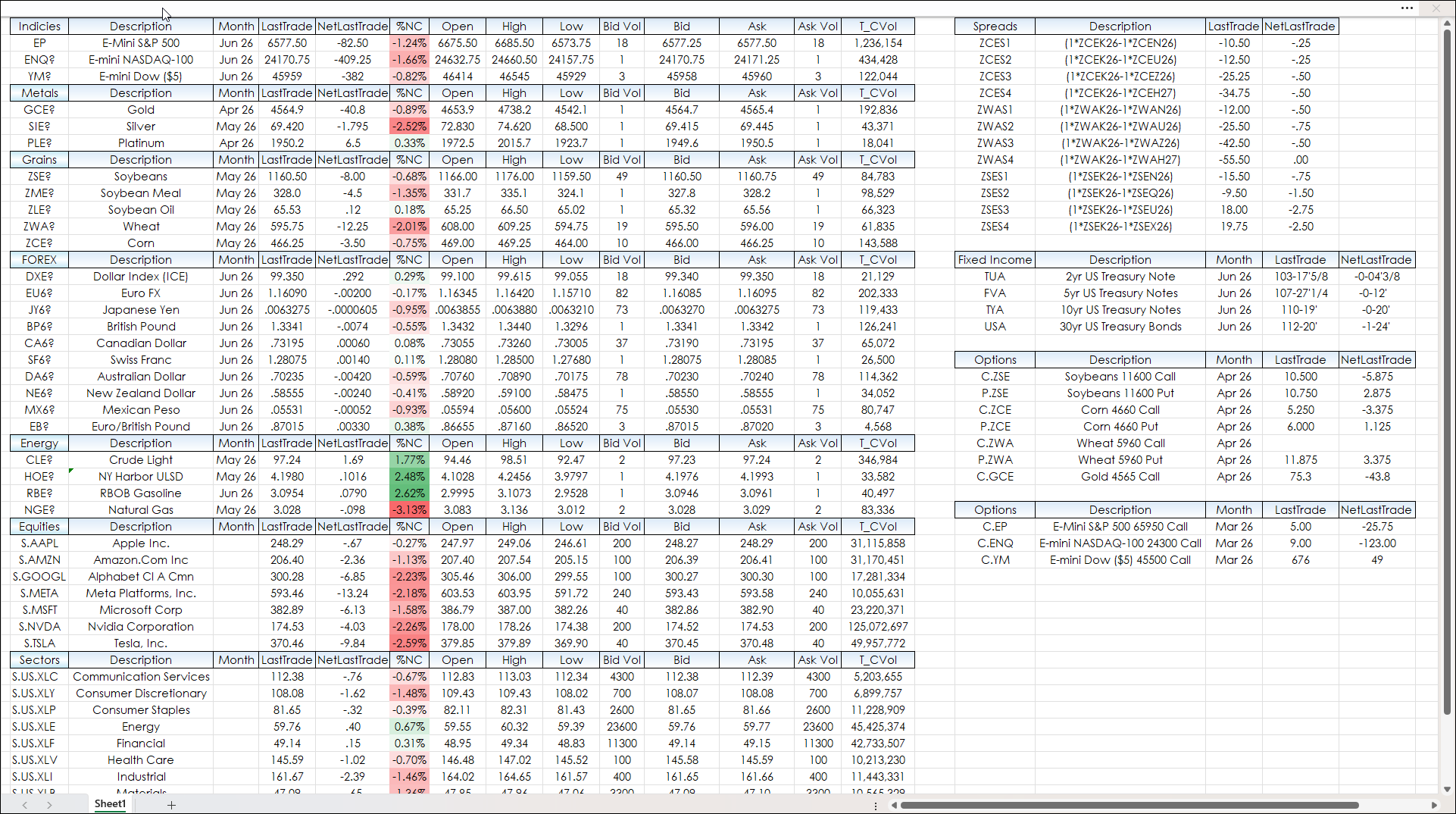
The sample dashboard at the bottom of the post is an update to a previous post: Excel 365 Using the LAMBDA Function.
The original posted sample dashboard has a custom Excel function installed called FormatPrices, which uses the Tick Size to format prices using the correct number of decimal places.
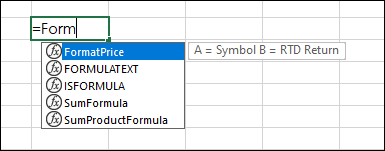
The updated sample Excel dashboard includes the custom function.
Long Descriptions now use REGEXREPLACE and REGEXEXTRACT functions. There is a separate column for the expiration dates.
One additional tip: when using REGEXREPLACE for replacing multiple words use the Pipe symbol to separate the words:
=RTD("cqg.rtd", ,"ContractData","XLC", "LongDescription",, "T")Returns:
Communication Services Select Sector SPDR
Using REGEXREPLACE:
=TRIM(REGEXREPLACE(RTD("cqg.rtd", ,"ContractData","XLC", "LongDescription",, "T"), "\b(Select|Sector|SPDR|SectorSPDR|Fund)\b", ""))Returns:
Communication Services
This post detailed two functions available in Excel 365: REGEXREPLACE and REGEXEXTRACT for managing screen real estate.
AI was used to determine the proper regular expression to determine the pattern to be replaced or extracted.
Requirements: CQG Integrated Client or QTrader, and Excel 365 (locally installed, not in the Cloud) or more recent.
This post was assisted by AI and reviewed by Thom Hartle.