This post details the steps to pulling custom study values into Excel using RTD formulas. First, an overview of RTD formulas and parameters.
When CQG IC or QTrader are installed, a DLL… more

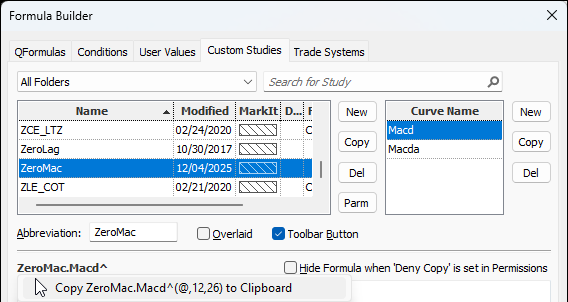
This post details the steps to pulling custom study values into Excel using RTD formulas. First, an overview of RTD formulas and parameters.
When CQG IC or QTrader are installed, a DLL… more
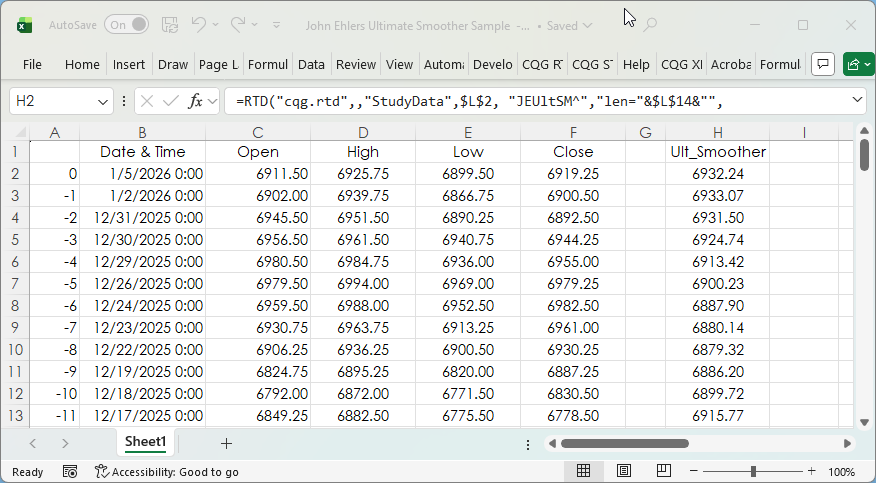
The post CQG Primer: The Ultimate Smoother detailed a study developed by John Ehlers. You can find a detailed description of the Ultimate Smoother on the MESA Software website.
This post… more
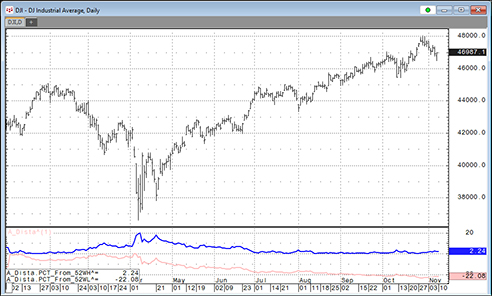
This post offers a downloadable CQG PAC for IC and QTrader and Excel dashboard that includes two custom studies that track a market's performance by measuring the price difference between the… more
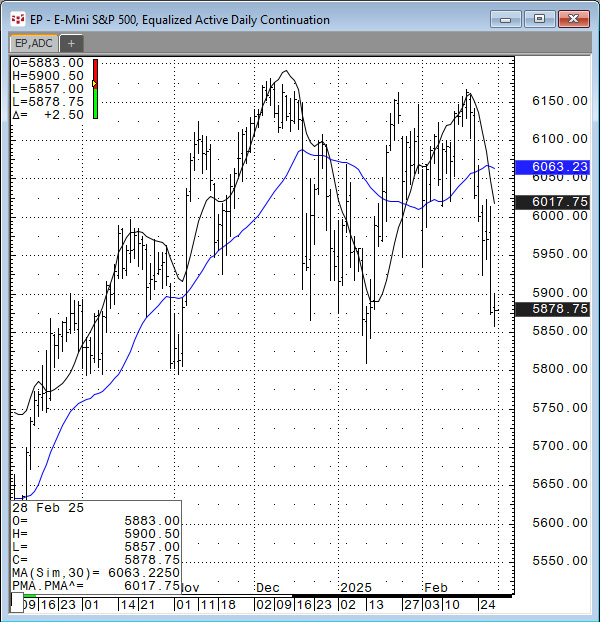
In the March 2025 issue of Technical Analysis of STOCKS & COMMODITIES magazine John Ehlers, President of MESA Software, presented "A New Solution, Removing Moving Average Lag."
The… more

The PriceToDollar function converts the prices of the particular market to their value. For example, below the E-mini S&P 500 futures contract's last price is 6003.75. And 6003.75 multiplied… more

Two recent posts CQG Primer: The Level Function and Level Function Using Excel RTD Formulas detailed using the Level function available in CQG IC and QTrader. The Level function plots two lines,… more
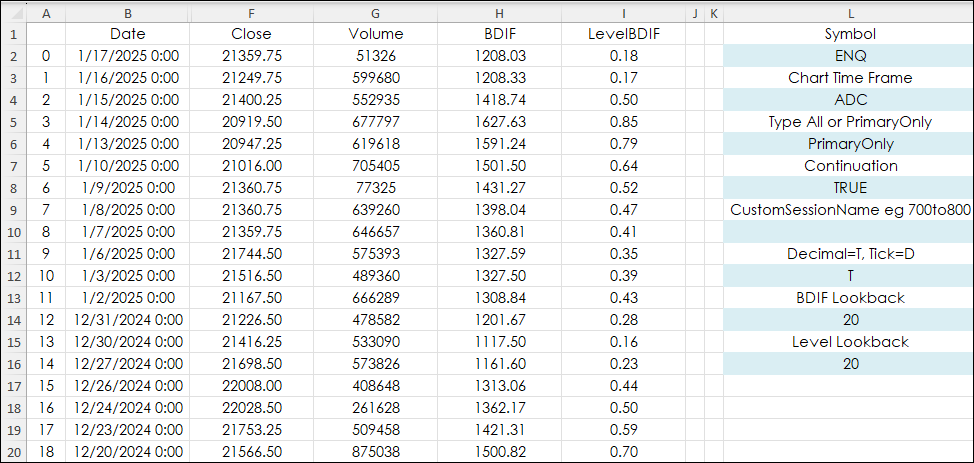
This post "CQG Primer: The Level Function" introduced the Level Function. The Level Function plots two lines, which identify the highest and lowest levels attained over a defined period. The… more
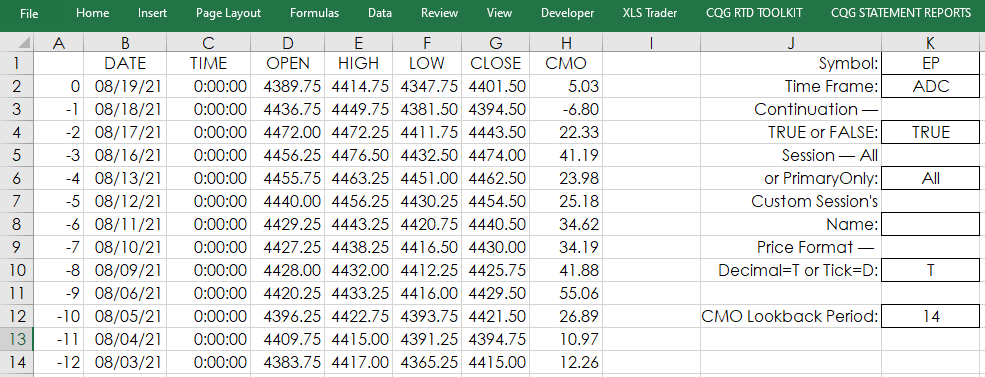
This post builds upon CQG Product Specialist Helmut Mueller's post titled “Most Wanted Seven Studies Plus a Bonus Trading System.” His post provides a PAC with the following studies:
Chande… more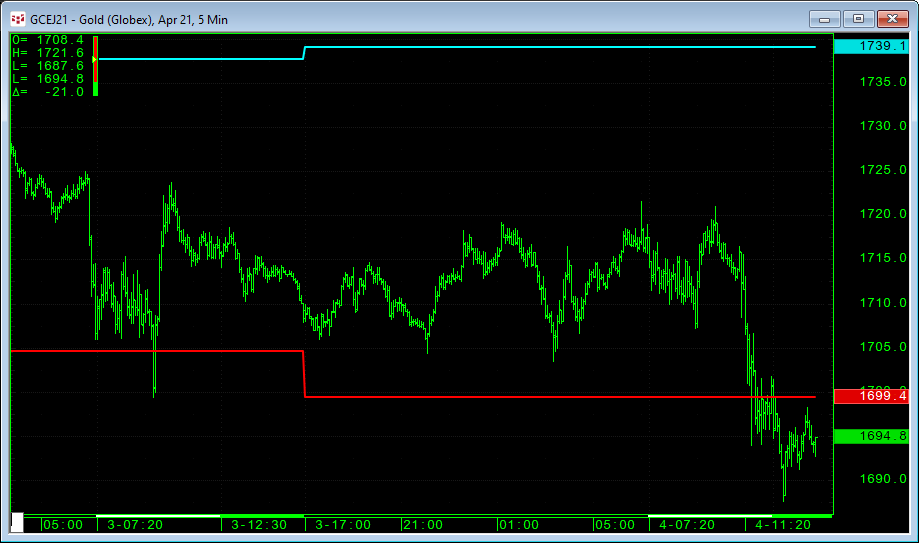
The BarInt function can be useful when creating Custom Studies or Conditions which can be applied to different timeframe but where a point of reference may be different whether you are looking at… more
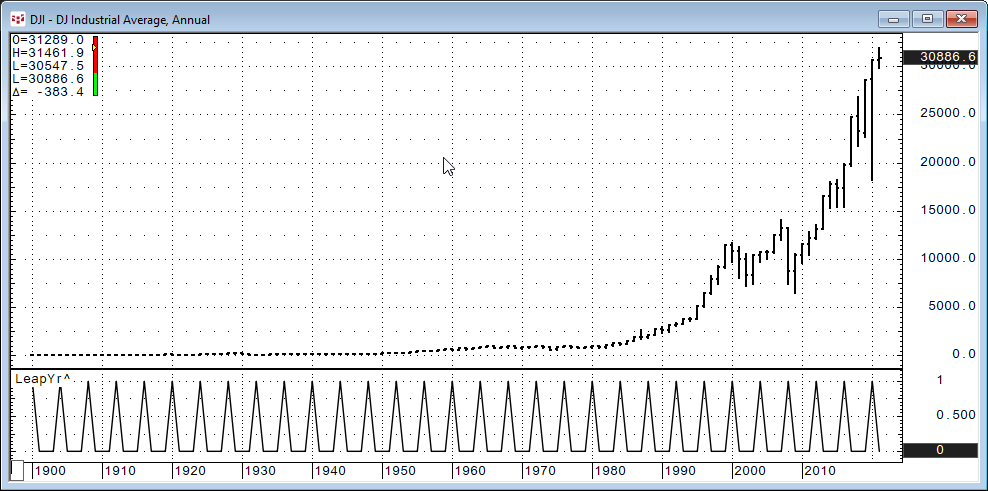
One of the simplest examples for this function is to find out whether a value is an even number.
Modulus (Close(@),2) = 0In other words, the result of the formula above would give us the… more