
This post details the steps to pulling custom study values into Excel using RTD formulas. First, an overview of RTD formulas and parameters.
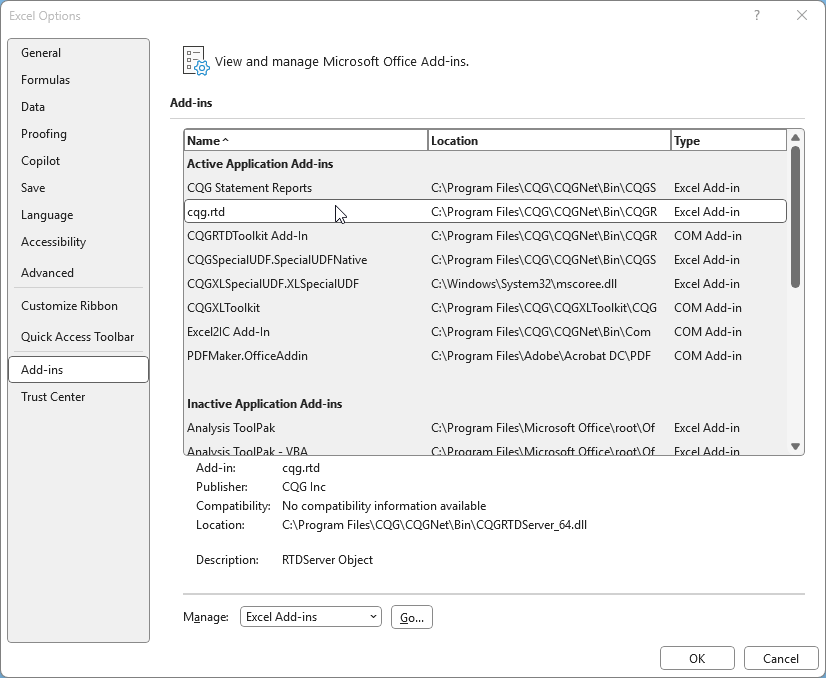
When CQG IC or QTrader are installed, a DLL is installed (cqg.rtd) in Excel as an Add-in. This "cqg.rtd" Add-in is what connects Excel to CQG.
Here is the RTD syntax to query study data by RTD:
= RTD("cqg.rtd", , "StudyData", "<contract>", "<study>"[, "<study parameters>"], "<field(s)>", "<interval>" [, "<bar index(es)>"][, "<session filter>"][, "< custom session >"] [, "<BATS filter>"] [, "<equalize close>"] [, "<data format>"])As an example, this next RTD formula pulls in the 21-period moving average for a 5-minute chart of symbol EP:
= RTD("cqg.rtd",,"StudyData","EP", "MA", "InputChoice=Close,MAType=Sim,Period=21","MA","5","0","all","","","TRUE","T")Here is the syntax broken down to query study data. At the end in bold are actual parameters used in the MA RTD example above:
<contract> := <CQG symbol>: "EP"
<study> := study name: "MA"
<study parameters> := <ParamName>"="<parameter_value>
<ParamName> := <string value>
<parameter_value> := <string value>: "InputChoice=Close,MAType=Sim,Period=21"
<interval> := <ULONG> | <string value>: "5"
<bar index(es)> := [current]-<index>:
<index> := 0… 65535: "0" The index is for pulling history. "0" is current and there is a minus sign. Therefore, 0, -1, -2, …
<session filter> := primaryOnly | 1..31 | all |: "all"
<custom session> := <string value>"" If left blank then not a custom session.
<BATS filter> := <BATS filter item>{,<BATS filter item>}
<BATS filter item> := B | A | TS" "" If left blank the Last Trade or Settlement is used.
<equalize close> := True | False: "TRUE"
<data format > := T | D: "T"
To pull in custom study data using RTD formulas we need the name of the study, the parameters, and the name of the curve displayed. For that information open the CQG Formula Builder and left click on the name of the study right above the Editor window.
Select, in this case, "Copy ZeroMac.Macd^(@,12,26) to clipboard.
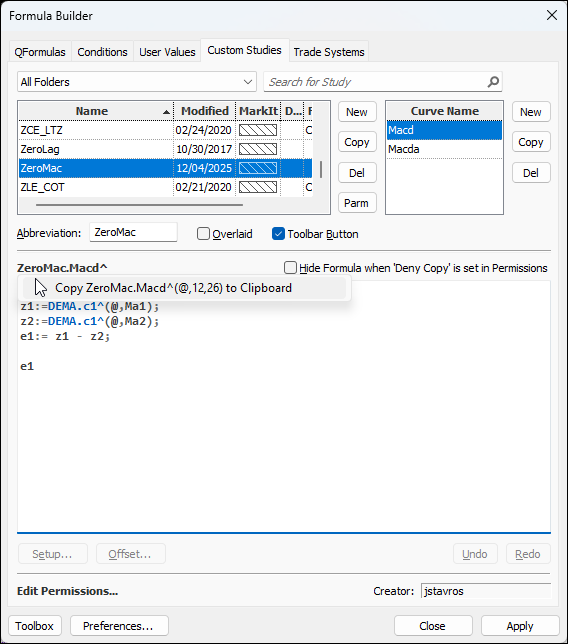
On the clipboard will be "ZeroMac.Macd^(@,12,26)". "ZeroMac" is the study namce and "Macd" is the name of the curve. There are three versions of the RTD formula for pulling this study's data into Excel.
This version uses the parameters that CQG IC or QTrader are using:
=RTD("cqg.rtd",,"StudyData","EP", "ZeroMac^","","Macd","5","0","all",,"","TRUE","T")This next version passes all of the information needed in the symbol parameter for the RTD Bar and Close formula:
=RTD("cqg.rtd",,"StudyData", "ZeroMac.Macd^(EP,12,26)","Bar","","Close","5","0","all",,"","TRUE","T")Above, the Symbol and the two parameters can be modified.
The final version uses the standard RTD study formula (Symbol, Study Name, Study Parameters, and the Curve Name):
=RTD("cqg.rtd",,"StudyData","EP", "ZeroMac^","Ma1=12, Ma2=26","Macd","5","0","all",,"","TRUE","T")Above, the Symbol and the two parameters can be modified.
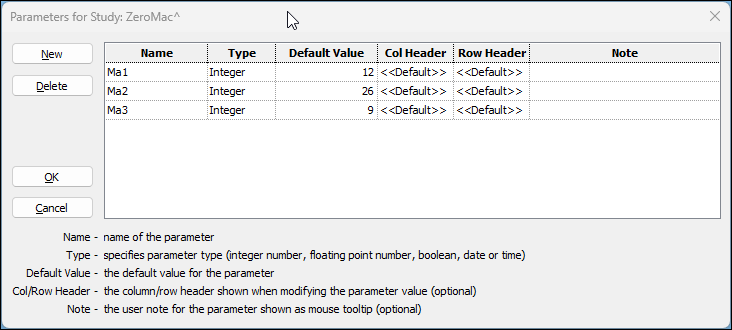
To determine the study Parameters names, you can select "Parm" in the Formula Builder.
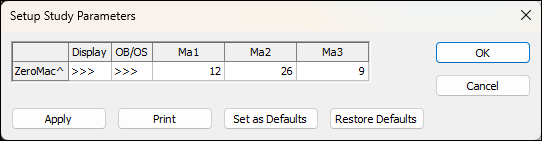
Or right click the study on a chart and select Modify.
The particular study used in this example has two curves, and this process must be repeated for the second curve. Select the second curve and left-click the name at the top of the Editor window and select Copy ZeroMac.Macda^(@,12,26,9) to Clipboard.
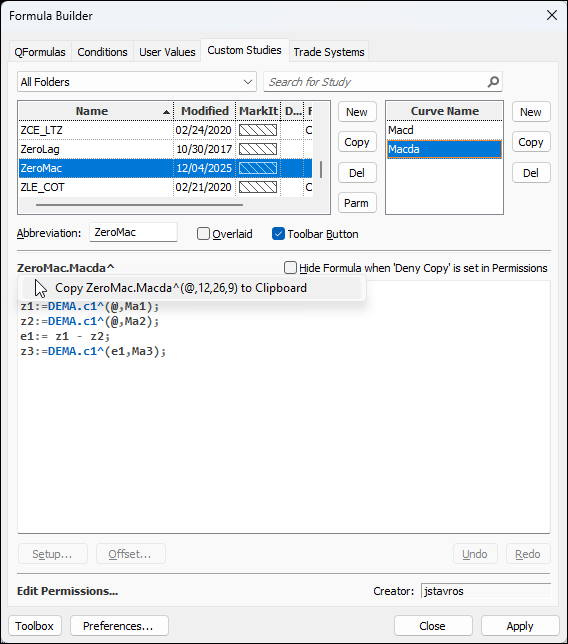
On the clipboard will be: "ZeroMac.Macda^(@,12,26,9)" The three examples of RTD formulas are:
=RTD("cqg.rtd",,"StudyData","EP", "ZeroMac^","", "Macda","5","0","all",,"","TRUE","T")=RTD("cqg.rtd",,"StudyData", "ZeroMac.Macda^(EP,12,26,9)", "BAR", "", "Close","5","0","all",,"","TRUE","T")=RTD("cqg.rtd",,"StudyData","EP", "ZeroMac^","Ma1=12, Ma2=26, Ma3=9", "Macda","5","0","all",,"","TRUE","T")The Excel Spreadsheet sample available below uses column Q for the parameters.

In the sample spreadsheet the RTD formulas for Macd and Macda are using absolute references (a $ is added ahead of the column and row labels) so the formulas can be copied down the columns in Excel. For example:
=RTD("cqg.rtd",,"StudyData",$Q$2, "ZeroMac^","", "Macd", $Q$4, $A2, $Q$6,$Q$10,,$Q$8,$Q$12)All three example RTD formulas for both curves are used in the Excel sample spreadsheet. Only one for each curve is required.
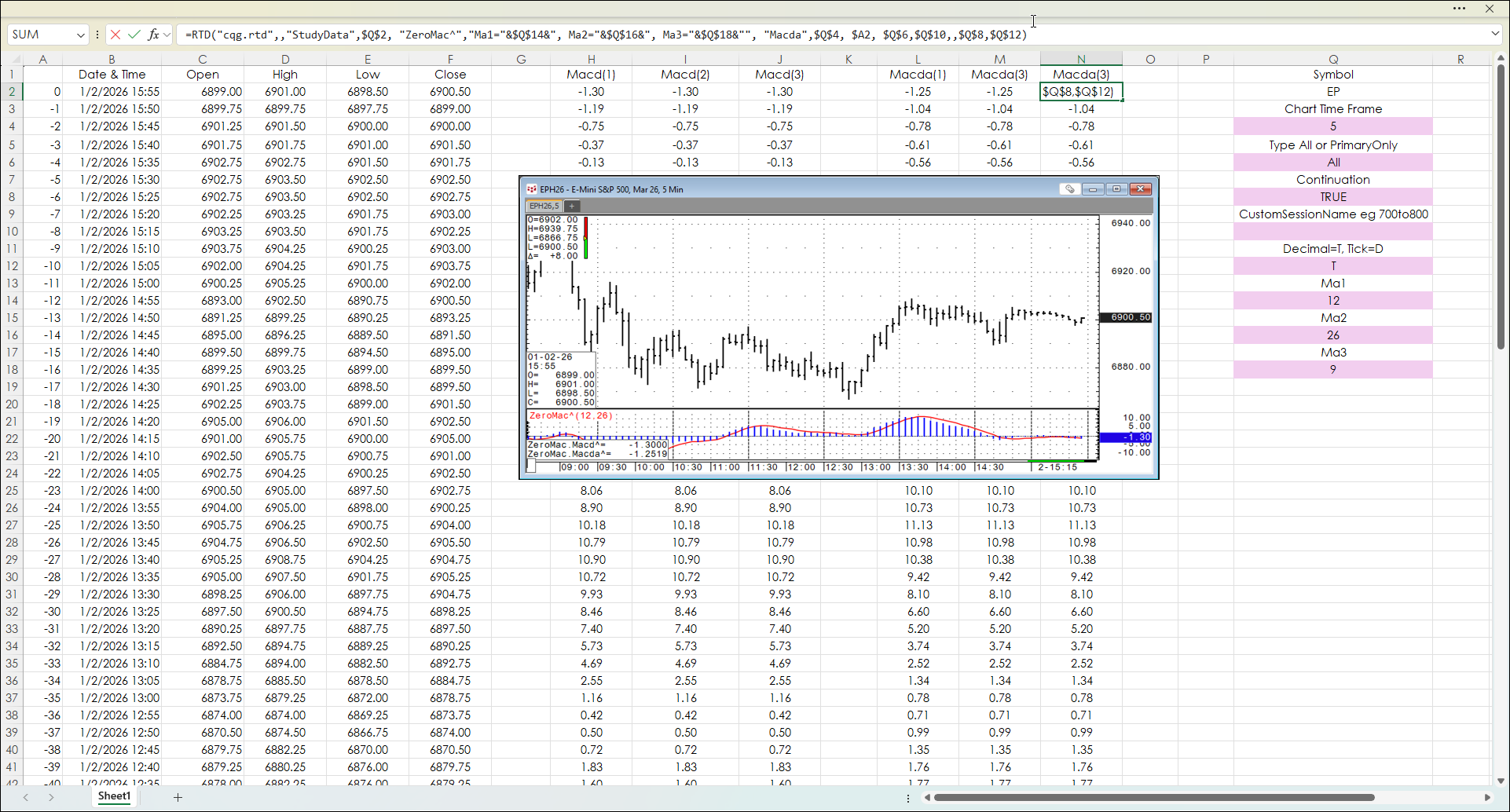
The custom study "ZeroMac" can be installed using the PAC below. The study was detailed in the post: DEMA Based MACD Oscillator
Requires CQG Integrated Client or CQG QTrader, and Excel 365 or more recent locally installed, not in the cloud.