
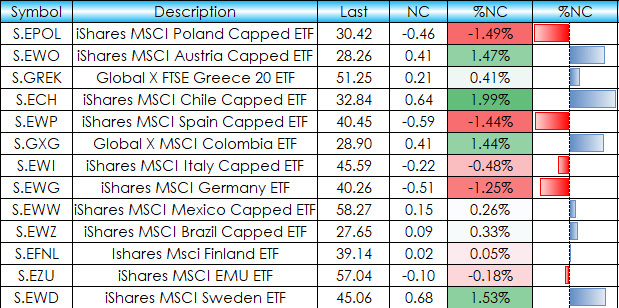
This post details an Excel dashboard tracking Country Equity ETFs performance. The dashboard ranks and sorts the Country ETFs traded using the NYSE American enablement. Fifty-one ETFs are tracked… more
Excel
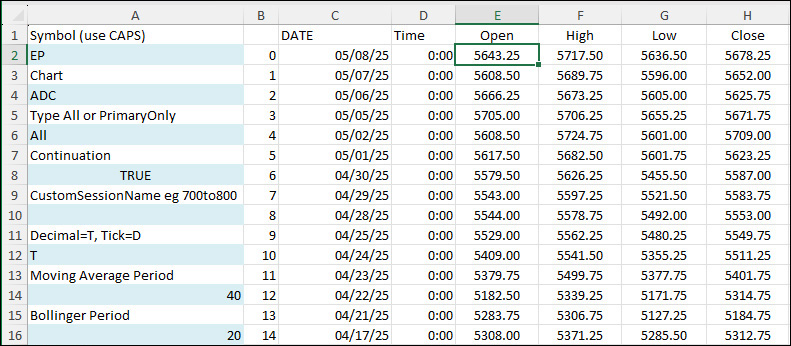
This post offers a downloadable sample Excel spreadsheet for pulling in historical data and study values from CQG IC or QTrader using RTD formulas.
The Data consists of:
Open, High, Low,… more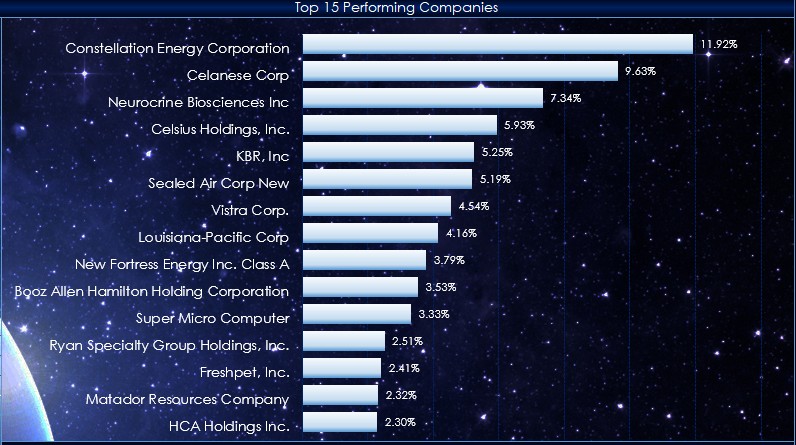
This macro-enabled Microsoft Excel® spreadsheet tracks the holdings of the iShares Russell 1000 Growth ETF (symbol: IWF). The iShares Russell 1000 Growth ETF seeks to track the investment results… more
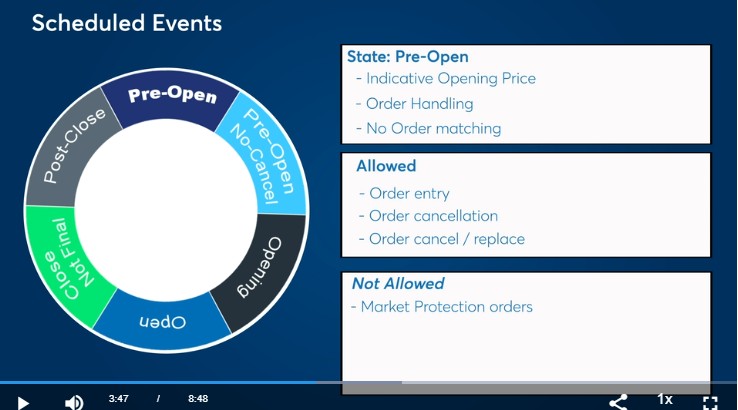
Various Exchanges offer market data detailing the current state of a market. This includes the CME Group, the Intercontinental Exchange (ICE), CBOE Futures Exchange (CFE), and others.
For… more
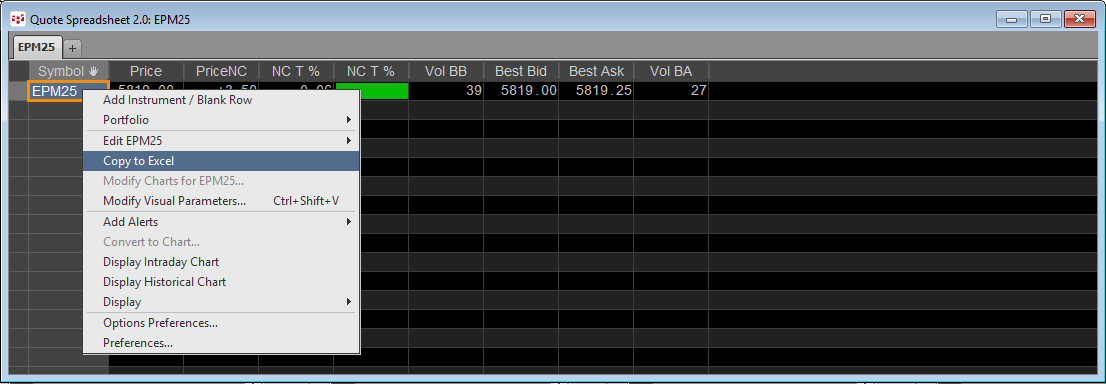
This post details the different techniques for pulling Depth-of-Market (DOM) data into Excel.
There are three ways:
C&P RTD formulas for Level 1 DOM data from the various quote… more
This macro-enabled Microsoft Excel® spreadsheet tracks the holdings of the iShares Core S&P U.S. Growth ETF (symbol: IUSG). The iShares Core S&P U.S. Growth ETF seeks to track the… more
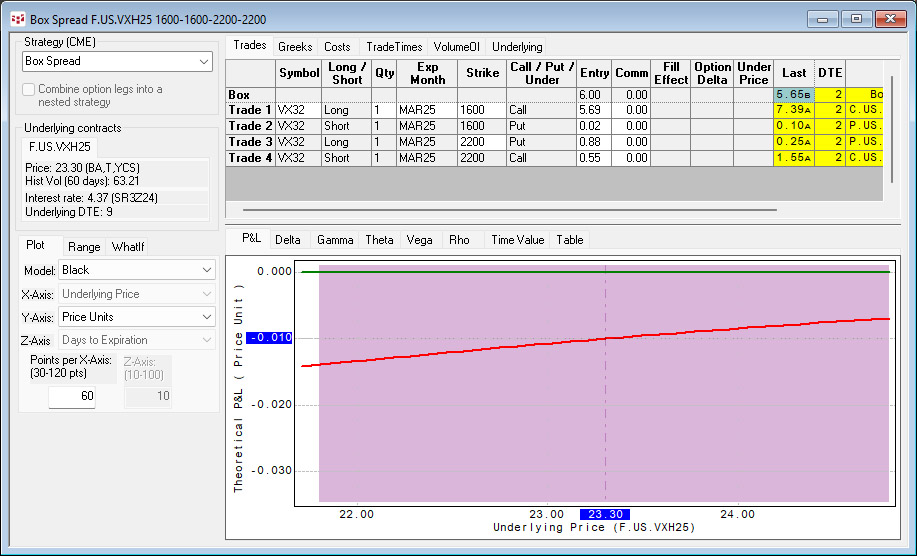
October 14, 2024, the Cboe launched weekly options on the Cboe VIX futures. To find the symbols in IC or QTrader, open the Symbol Search, select Cboe Futures Exchange (CFE), sort the Asset column… more
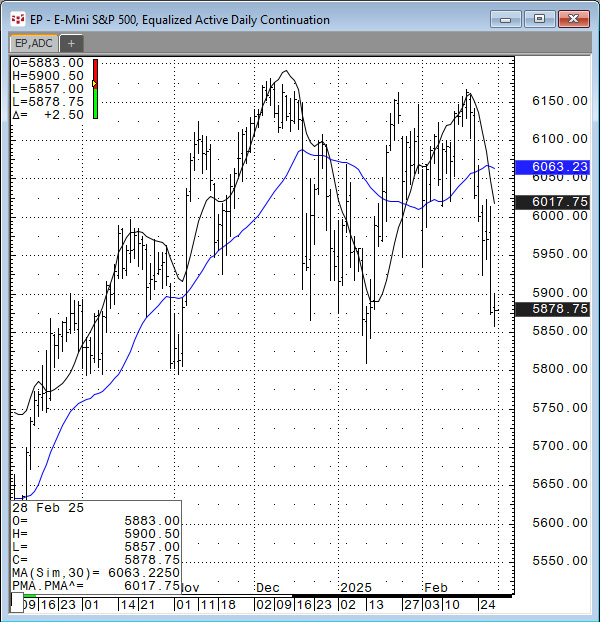
In the March 2025 issue of Technical Analysis of STOCKS & COMMODITIES magazine John Ehlers, President of MESA Software, presented "A New Solution, Removing Moving Average Lag."
The… more
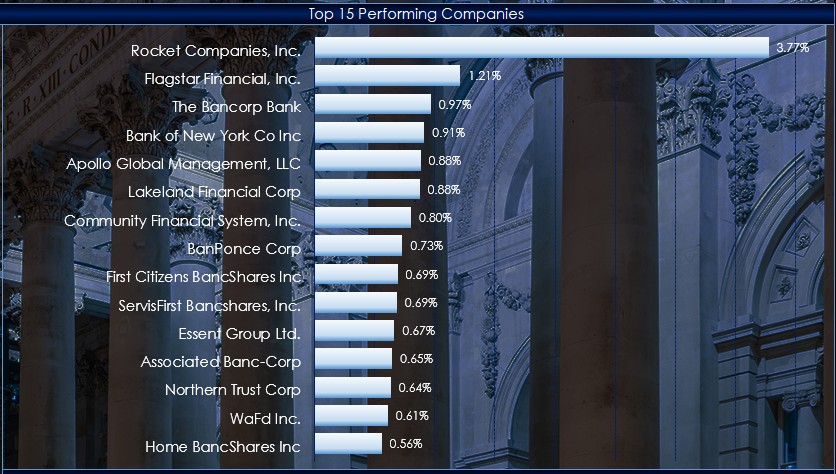
This macro-enabled Microsoft Excel® spreadsheet tracks the holdings of the SPDR® S&P® Bank ETF (symbol: KBE).
Throughout the trading session, the individual stocks are dynamically ranked… more
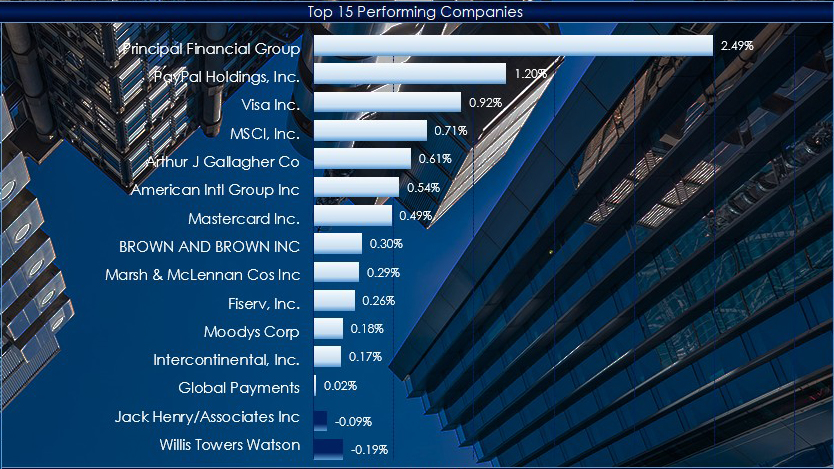
This macro-enabled Microsoft Excel® spreadsheet tracks the holdings of the Financial Select Sector SPDR® ETF (symbol: XLF).
Throughout the trading session, the individual stocks are… more